Dark mode
Track your application and upload documents
After you apply, you use your personal link to upload your documents and see what to do next.
Who: Applicants.
Where: The personal links in the confirmation email you received after applying. No password needed.
Keep your personal link private
Anyone who has your link can see your application and upload files to it. Don't post it or share it with anyone except your parent or guardian.
Upload your documents
- Open the requirements link from your email. The page is called Initial Requirements Submission.
- You'll see a list of documents. Each one shows Pending (not uploaded yet) or Submitted.
- Click Upload next to a document.
- Choose the file from your phone or computer.
- Wait until the status changes to Submitted.
- Repeat for every document.
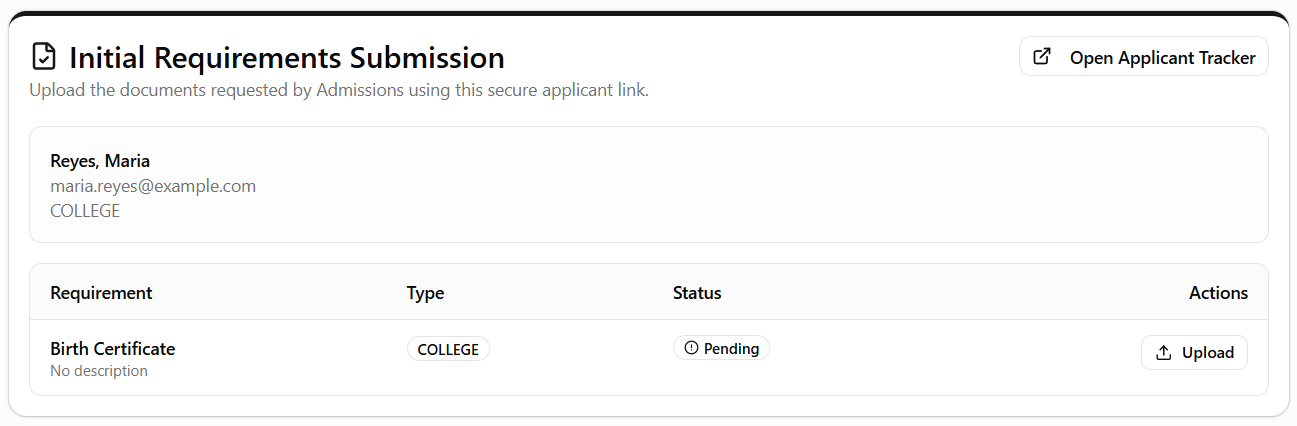
Files you can upload: PDF, JPG, PNG, GIF, WEBP, or Excel (XLS, XLSX, CSV). Each file can be up to 10 MB.
Uploaded the wrong file?
Just upload again for the same document. The new file replaces the old one.
Check your progress (Applicant Tracker)
- Open the tracker link from your email, or click Open Applicant Tracker on the upload page.
- Click Refresh to see the latest information.
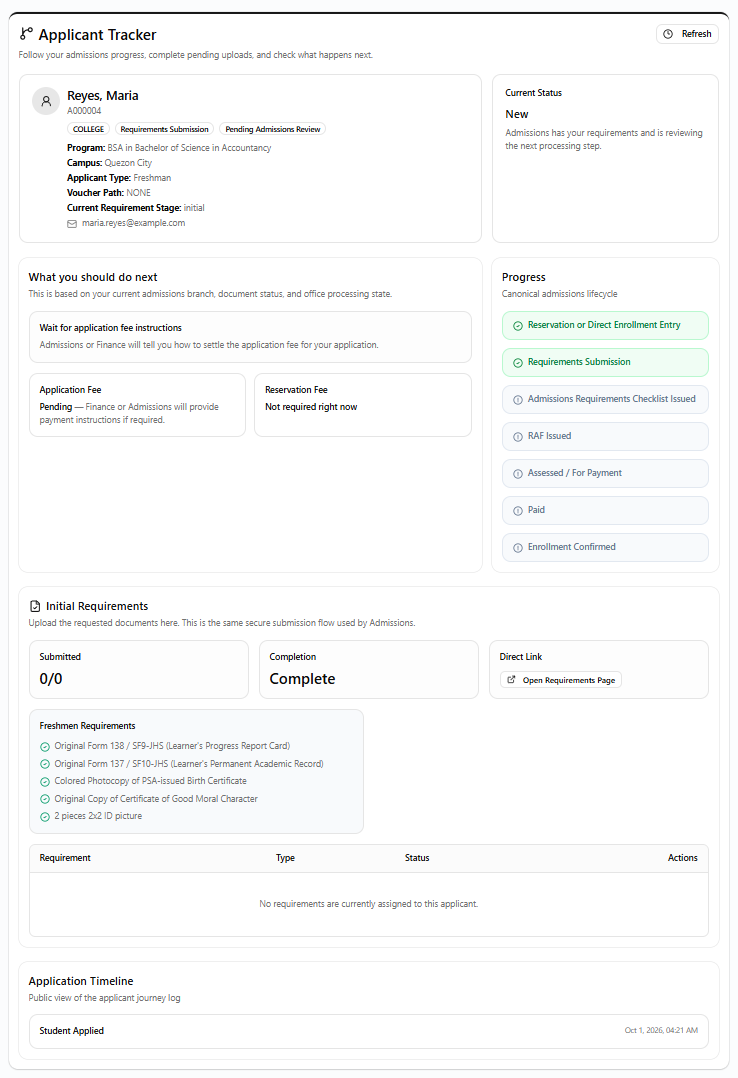
What each part of the tracker means
| Part | What it tells you |
|---|---|
| Your details (top left) | Your name, application number, program, campus and applicant type |
| Current Status | Where you are now, for example New, For Interview or Reserved |
| What you should do next | Your next step, in plain words |
| Application Fee / Reservation Fee | Whether each fee is paid, waived or still needed |
| Progress | The steps of the admissions process. Green steps are done. |
| Initial Requirements | How many documents you've uploaded, with a link to the upload page |
| Application Timeline | Everything that has happened so far, with dates |
What "What you should do next" means
| Message | What to do |
|---|---|
| Submit your initial requirements | Upload the documents still marked Pending |
| Attend your scheduled interview | Go to your interview on the date and time you were given |
| Wait for interview instructions | Admissions will contact you about your interview |
| Wait for application fee instructions | Admissions or Finance will tell you how to pay the application fee |
| Wait for reservation fee instructions | Admissions or Finance will tell you how to pay the reservation fee |
| Wait for Admissions review | Admissions is reviewing your application. Nothing to do yet. |
| Wait for registrar processing | You're cleared. The Registrar will enroll you in subjects. |
| Coordinate with Finance for payment | Your subjects are ready. Pay your tuition at the cashier. |
| Enrollment confirmed | You're officially enrolled. Welcome to PSBA! |
| Contact Admissions | Please get in touch with the Admissions Office |
Some messages may be out of date
- If you're already enrolled but haven't uploaded every document, the tracker may still tell you to "Submit your initial requirements". Upload the missing documents, or ask Admissions.
- The steps RAF Issued and Paid may never turn green. This is a known display issue, not a problem with your application.
Need help?
Contact the PSBA Admissions Office. Have your name and the email you used to apply ready.