Dark mode
How to use this manual
This manual is a website that shows you how to do your work in the PSBA SMS, step by step. This page shows you how to find what you need in it.
The home page
When you open the manual, you start on the home page.

- Search the manual — type a word to find any page. See Search for a topic.
- Top menu — Home, Start Here, Which guide is mine?, Guides and Help. Click Guides to see the list of offices.
- Start buttons:
- I'm new — start here opens the Welcome page.
- Which guide is mine? helps you find the guide for your job.
- Something's not working opens the Common questions page.
- Job cards — click the card that matches your job, for example I work in the Registrar's Office. It opens the guide for your office.
Not sure which card is yours?
Open Which guide is mine?. Find your job in the table, then click the guide next to it.
Reading a guide page
Every guide page has the same parts. Once you know one page, you know them all.

- Menu on the left — all the topics, grouped by office. Click a group name, like Registrar's Office, to open it. The page you are reading is shown in blue.
- The box at the top — tells you three things before you start:
- Who can do this task.
- Where to find it in the SMS menu.
- You need — what must be ready first.
- Numbered steps — do them in order, one step at a time. Words in bold are the exact button or menu names you will see in the SMS.
- On this page — the parts of this page. Click one to jump to it. This is useful on long pages.
Tip, warning and danger boxes
- A tip box gives you a helpful hint.
- A warning box tells you something to check so you don't make a mistake. Always read it.
- A danger box tells you about something that can't be undone.
Search for a topic
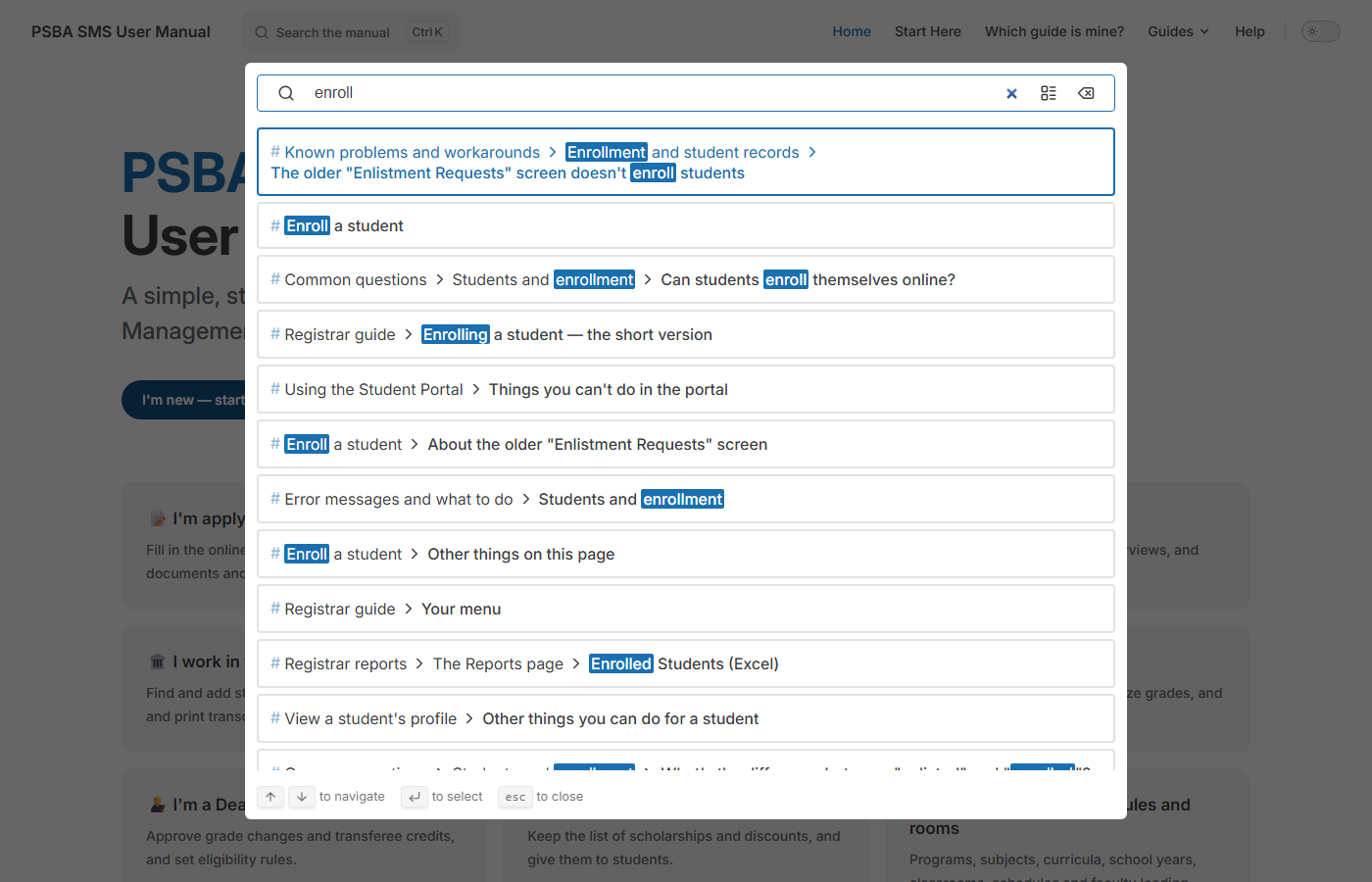
Searching is the fastest way to find a page.
- Click Search the manual at the top of the page. (Or press Ctrl and K on your keyboard together.)
- Type a word you see on your SMS screen, for example enroll, receipt or finalize.
- Click a result to open it.
- To close the search box, press Esc on your keyboard.
No results?
Try a shorter or simpler word. For example, type grade instead of grade change request.
On a phone or small screen
On a phone, the menus are hidden to save space.

- Tap Menu to see the list of topics (the menu on the left).
- Tap the three lines at the top right to see the top menu (Home, Guides, Help and others).
The magnifying glass at the top opens the search box.
If you get lost
- Click PSBA SMS User Manual at the top left to go back to the home page.
- Use your browser's Back button to go back one page.
- See a word you don't know? Check Words to know.
- Got an error message in the SMS? Look it up in Error messages and what to do.